
AddMaple makes it easy to read and analyse your data from a file.
We support CSV, XLSX and JSON files - if you have your data in another format then please convert it to CSV in order to read and analyse it.
Step 1. Sign In
Click "Sign In" on the top right of the page

This will let you sign in with either your Google account or with a username and password.
Step 2. Create a new project
After you've signed in, click "New Project" in the menu bar (if this is your first time signing in you can skip this step).
You will see a page like this:
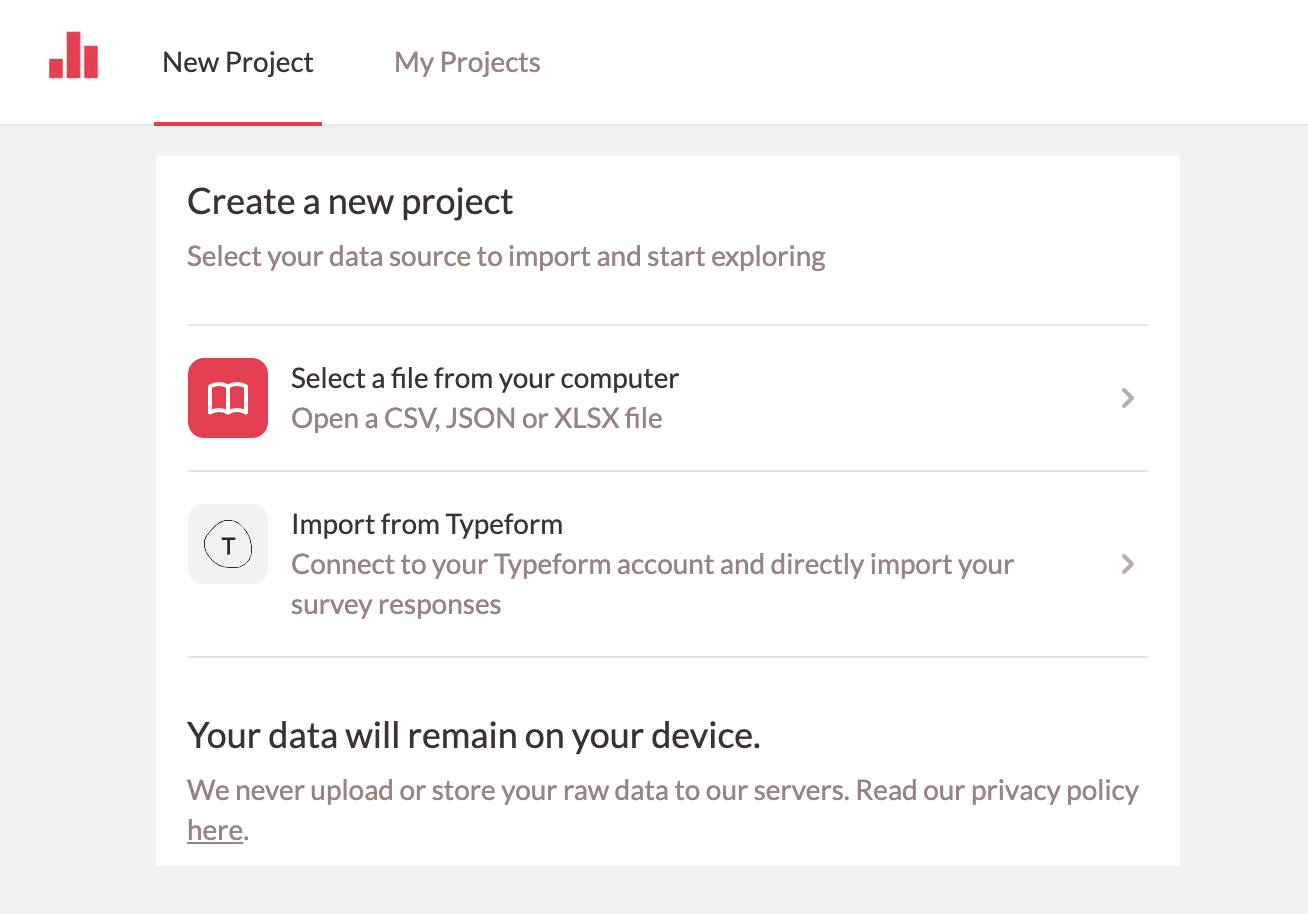
Click "Select a file from your computer". This will bring up a file chooser screen that will allow you to navigate the file system to find a file to read and analyse.
Once you have selected a file, AddMaple will immediately start reading and analysing it. This could take a few seconds depending on how large your file is.
Please note, your data is never uploaded to AddMaple, it stays on your computer
Step 3. Explore your data
Once AddMaple has read your file you will see the explore screen:
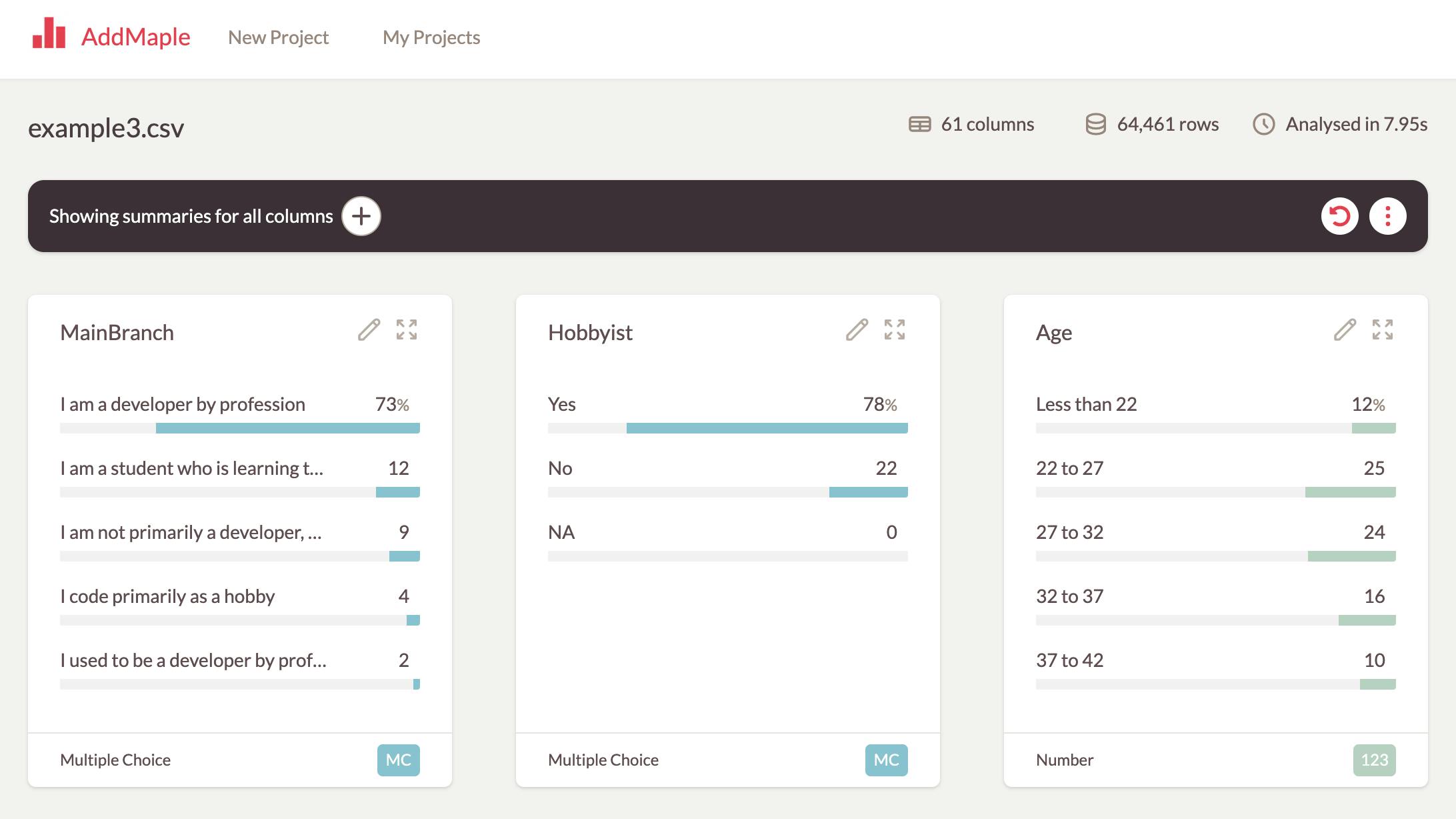
This screen show some statistics on your data file. In the example above AddMaple found 61 columns and 64,461 rows. The reading and analysis took 7.95 seconds.
You can now start exploring your data, pivoting, filtering and creating shareable reports.
If there is a problem reading your file or if it looks like AddMaple hasn't understood your data, please click the "?" icon in the bottom right and send us a message.